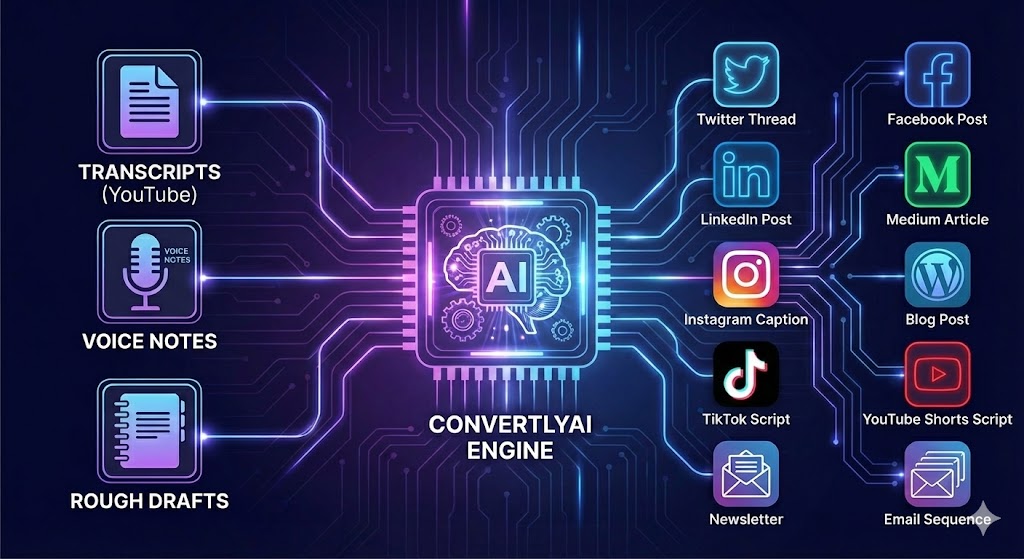
How to Use ConvertlyAI: A Step-by-Step Guide
Published Updated Today
ConvertlyAI is built for speed. We have removed all the friction from content creation. You no longer need to "set up a project" or name files before you start. You simply log in, paste your text, and generate.
This manual details the exact workflow to turn your raw text into polished assets in seconds.
Phase 1: The Direct Dashboard
When you log in, you land directly on your workspace. There are no onboarding screens or project setup wizards. You are immediately presented with three input options:
- YouTube: Best for repurposing video content. Copy the transcript from a YouTube video description and paste it here.
- Voice / Audio: Best for turning ramblings into structure. Paste the text from your voice memos or dictations.
- Text / Notes: Best for reformatting. Paste your rough bullet points, messy drafts, or old blog posts.
Phase 2: One-Click Generation
Once your text is pasted, simply hit Generate Content. The AI instantly analyzes your text, filters out the noise (like filler words and tangents), and restructures the core value into the format you selected.
Phase 3: Your Content Library
Every time you hit generate, that content is saved to your Content Library at the bottom of the dashboard. You can revisit these items anytime. If you want to delete an old generation, simply click the "X" on the card to keep your workspace clean.
Phase 4: The Final Polish
Our AI gets you 90% of the way there. We recommend spending two minutes reviewing the output to ensure it matches your specific tone before posting.